● LIVE
OpenAI releases GPT-5 APIIndia AI startup raises $120MBitcoin ETF hits record inflowsMeta Llama 4 benchmarks leakedOpenAI releases GPT-5 APIIndia AI startup raises $120MBitcoin ETF hits record inflowsMeta Llama 4 benchmarks leaked
📅 Sat, 21 Mar, 2026✈️ Telegram
AiFeed24

AI & Tech News

🔍
✈️ Follow
🏠Home🤖AI💻Tech🚀Startups₿Crypto🔒Security🇮🇳India☁️Cloud🔥Deals
✈️ News Channel🛒 Deals Channel
NocoBase 2.0 Beginner Tutorial - Chapter 2: Data Modeling
☁️Cloud & DevOps

NocoBase 2.0 Beginner Tutorial - Chapter 2: Data Modeling

Home/Cloud & DevOps/NocoBase 2.0 Beginner Tutorial - Chapter 2: Data Modeling

Originally published at https://docs.nocobase.com/tutorials/v2/02-data-modeling In the last chapter, we installed NocoBase and got familiar with the interface. Now it's time to build the skeleton of our HelpDesk system — the data model. This chapter creates two collections — Tickets and Categories —

⚡Quick SummaryAI generating...
N

NocoBase

📅 Mar 21, 2026·⏱ 11 min read·Dev.to ↗
✈️ Telegram𝕏 TweetWhatsApp
📡

Original Source

Dev.to

https://dev.to/nocobase/nocobase-20-beginner-tutorial-chapter-2-data-modeling-32fb
Read Full ↗

Originally published at https://docs.nocobase.com/tutorials/v2/02-data-modeling

In the last chapter, we installed NocoBase and got familiar with the interface. Now it's time to build the skeleton of our HelpDesk system — the data model.

This chapter creates two collections — Tickets and Categories — and configures field types (single-line text, dropdown, many-to-one relations). The data model is the foundation: figure out what data you need and how it's related, then building pages and setting permissions becomes straightforward.

2.1 What Are Collections and Fields

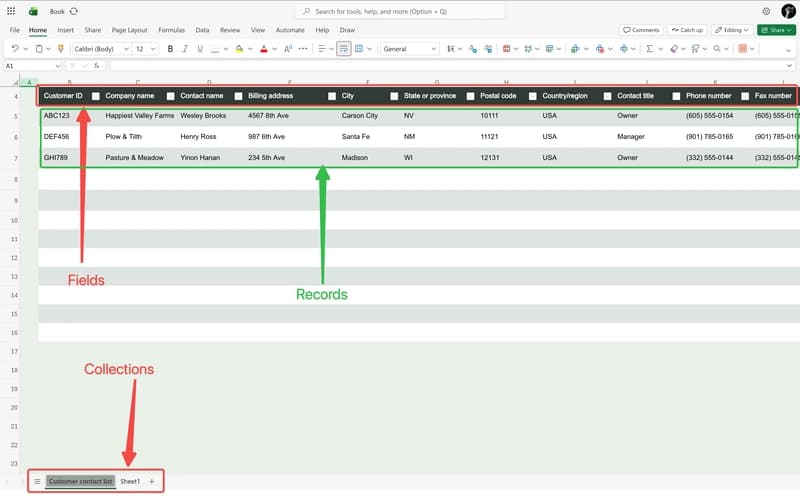
If you've used Excel before, this will feel familiar:

Excel Concept NocoBase Concept Description
Worksheet Collection A container for one type of data
Column header Field An attribute describing the data
Each row Record One specific piece of data

02-data-modeling-2026-03-11-08-32-41

For example, our "Tickets" collection is like an Excel spreadsheet — each column is a field (Title, Status, Priority...), and each row is one ticket record.

But NocoBase is much more powerful than Excel. It supports multiple collection types, each with different built-in capabilities:

Type Best For Examples
General Most business data Tickets, Orders, Customers
Tree Hierarchical data Category trees, Org charts
Calendar Date-based events Meetings, Schedules
File Attachment management Documents, Images

Today we'll use General and Tree collections. We'll cover the others when needed.

Enter Data Source Manager: Click the "Data Source Manager" icon in the bottom-left corner (the database icon next to the gear). You'll see the "Main data source" — this is where all our tables live.

02-data-modeling-2026-03-11-08-35-08

2.2 Creating the Core Table: Tickets

Let's jump right in and create the heart of our system — the Tickets table.

Create the Table

  1. On the Data Source Manager page, click "Main data source" to enter

02-data-modeling-2026-03-11-08-36-06

  1. Click "Create collection", then select "General collection"

02-data-modeling-2026-03-11-08-38-52

  1. Collection name: tickets, Display name: Tickets

02-data-modeling-2026-03-11-08-40-34

When creating a table, the system checks a set of system fields by default. These automatically track metadata for every record:

Field Description
ID Primary key, unique identifier
Created at When the record was created
Created by Who created the record
Last updated at When it was last modified
Last updated by Who last modified it

Keep these defaults as-is — no manual management needed. You can uncheck them if a specific scenario doesn't need them.

Adding Basic Fields

The table is created. Now let's add fields. Click "Configure fields" on the Tickets table, and you'll see the default system fields already listed.

02-data-modeling-2026-03-11-08-58-48

02-data-modeling-2026-03-11-08-59-47

Click the "Add field" button in the top-right corner to expand a dropdown of field types — pick the one you want to add.

02-data-modeling-2026-03-11-09-00-22

We'll add the ticket's own fields first; relation fields come later.

1. Title (Single line text)

Every ticket needs a short title to summarize the issue. Click "Add field" → select "Single line text":

02-data-modeling-2026-03-11-09-01-00

  • Field name: title, Display name: Title
  • Click "Set validation rules", add a "Required" rule

02-data-modeling-2026-03-11-09-02-40

2. Description (Markdown(Vditor))

For detailed problem descriptions with rich formatting — images, code blocks, etc. Under "Add field" → "Media" category, you'll find three options:

Field Type Features
Markdown Basic Markdown, simple styling
Rich Text Rich text editor with attachment uploads
Markdown(Vditor) Most feature-rich: WYSIWYG, instant rendering, and source code editing modes

We'll go with Markdown(Vditor).

02-data-modeling-2026-03-11-09-09-58

  • Field name: description, Display name: Description

02-data-modeling-2026-03-11-09-10-50

3. Status (Single select)

02-data-modeling-2026-03-11-09-12-00

Tickets go through stages from submission to completion, so we need a status field to track progress.

  • Field name: status, Display name: Status
  • Add option values (each option needs a "Value" and "Label"; color is optional):
Value Label Color
pending Pending Orange
in_progress In Progress Blue
completed Completed Green

02-data-modeling-2026-03-11-09-17-44

Fill in the options and save first. Then click "Edit" on this field again — now you can set the "Default value" to "Pending".

02-data-modeling-2026-03-11-09-20-28

02-data-modeling-2026-03-11-09-22-34

The first time you create the field, there are no options yet, so you can't pick a default value — you need to save first, then come back to set it.

Why a single select? Because status is a fixed set of values. A dropdown prevents users from entering arbitrary text, keeping data clean.

4. Priority (Single select)

Helps distinguish urgency so the team can sort and tackle tickets efficiently.

  • Field name: priority, Display name: Priority
  • Add option values:
Value Label Color
low Low
medium Medium
high High Orange
urgent Urgent Red

At this point, the Tickets table has 4 basic fields. But — shouldn't a ticket have a "category"? Like "Network Issue" or "Software Bug"?

We could make Category a dropdown, but you'd quickly run into a problem: categories can have sub-categories ("Hardware" → "Monitor", "Keyboard", "Printer"), and dropdowns can't handle that.

We need a separate table for categories. And NocoBase's Tree collection is perfect for this.

2.3 Creating the Categories Tree Table

What Is a Tree Collection

A tree collection is a special type of table with built-in parent-child relationships — every record can have a parent node. This is ideal for hierarchical data:

Hardware          ← Level 1
├── Monitor       ← Level 2
├── Keyboard & Mouse
└── Printer
Software
├── Office Apps
└── System Issues
Network
Account

With a general collection, you'd have to manually create a "Parent Category" field to build this hierarchy. A tree collection handles it automatically and supports tree views, adding child records, and more.

Create the Table

  1. Go back to Data Source Manager, click "Create collection"
  2. This time, select "Tree collection" (not General!)

02-data-modeling-2026-03-11-09-26-07

  1. Collection name: categories, Display name: Categories

02-data-modeling-2026-03-11-09-26-55

After creation, you'll notice the table has two extra relation fields — "Parent" and "Children" — beyond the standard system fields. This is the tree collection's special power. Use Parent to access the parent node and Children to access all child nodes, without any manual setup.

02-data-modeling-2026-03-11-09-27-40

Add Fields

Click "Configure fields" to enter the field list. You'll see the system fields plus the auto-generated Parent and Children fields.
Click "Add field" in the top-right:

Field 1: Category Name

  1. Select "Single line text"
  2. Field name: name, Display name: Name
  3. Click "Set validation rules", add a "Required" rule

Field 2: Color

  1. Select "Color"
  2. Field name: color, Display name: Color

02-data-modeling-2026-03-11-09-28-59

The Color field gives each category its own visual identity — it will make the interface much more intuitive later.

02-data-modeling-2026-03-11-09-29-23

With that, both tables' basic fields are configured. Now let's link them together.

2.4 Back to Tickets: Adding Relation Fields

Relation fields can be a bit abstract at first. If it doesn't click right away, feel free to skip ahead to Chapter 3: Building Pages and see how data is displayed in practice, then come back here to add the relation fields.

Tickets need to be linked to a category, a submitter, and an assignee. These are called relation fields — instead of storing text directly (like "Title" does), they store the ID of a record in another table, and use that ID to look up the corresponding record.

Let's look at a specific ticket — on the left are the ticket's attributes. "Category" and "Submitter" don't store text; they store an ID. The system uses that ID to find the exact matching record from the tables on the right:

02-data-modeling-2026-03-12-00-50-10

On the interface, you see names like "Network" and "Alice", but behind the scenes it's all connected by IDs. Multiple tickets can point to the same category or the same user — this relationship is called Many-to-one.

Adding Relation Fields

Go back to Tickets → "Configure fields" → "Add field", select "Many to one".

02-data-modeling-2026-03-12-00-52-39

You'll see these configuration options:

Option Description How to Fill
Source collection Current table (auto-filled) Don't change
Target collection Which table to link to Select the target
Foreign key The linking column stored in the current table Enter a meaningful name
Target collection key field Defaults to id Keep as-is
ON DELETE What happens when the target record is deleted Keep as-is

02-data-modeling-2026-03-12-00-58-38

The foreign key defaults to a random name like f_xxxxx. We recommend changing it to something meaningful for easier maintenance. Use lowercase with underscores (e.g., category_id) instead of camelCase.

Add the following three fields:

5. Category → Categories table

  • Display name: Category
  • Target collection: Select "Categories" (if not in the list, type the name and it will be auto-created)
  • Foreign key: category_id

6. Submitter → Users table

Records who submitted this ticket. NocoBase has a built-in Users table — just link to it.

  • Display name: Submitter
  • Target collection: Select "Users"
  • Foreign key: submitter_id

02-data-modeling-2026-03-12-01-00-09

7. Assignee → Users table

Records who is responsible for handling this ticket.

  • Display name: Assignee
  • Target collection: Select "Users"
  • Foreign key: assignee_id

02-data-modeling-2026-03-12-01-00-22

2.5 The Complete Data Model

Let's review the full data model we've built:

02-data-modeling-2026-03-16-00-30-35

}o--|| represents a many-to-one relationship: "many" on the left, "one" on the right.

Summary

In this chapter we completed the data modeling — the entire skeleton of our HelpDesk system:

  1. Tickets (tickets): 4 basic fields + 3 relation fields, created as a General collection
  2. Categories (categories): 2 custom fields + auto-generated Parent/Children fields, created as a Tree collection with built-in hierarchy support

Key concepts we learned:

  • Collection = A container for one type of data
  • Collection types = Different types for different scenarios (General, Tree, etc.)
  • Field = A data attribute, created via "Configure fields" → "Add field"
  • System fields = ID, Created at, Created by, etc. — auto-checked when creating a table
  • Relation field (Many-to-one) = Points to a record in another table, linking tables together

You may notice that later screenshots already contain data — we pre-loaded test data for demonstration purposes. In NocoBase, all CRUD operations are done through the frontend pages. Chapter 3 covers building tables to display data, and Chapter 4 covers forms for data entry — stay tuned.

Next Chapter Preview

The skeleton is ready, but the tables are still empty. In the next chapter, we'll build pages to make the data visible.

See you in Chapter 3!

Related Resources

  • Data Sources Overview — Core data modeling concepts in NocoBase
  • Field Types — Complete field type reference
  • Many-to-One Relations — Relationship configuration guide
Tags:#cloud#dev.to

Found this useful? Share it!

✈️ Telegram𝕏 TweetWhatsApp

Read the Full Story

Continue reading on Dev.to

Visit Dev.to ↗

Related Stories

☁️
☁️Cloud & DevOps

Majority Element

about 2 hours ago

☁️
☁️Cloud & DevOps

Building a SQL Tokenizer and Formatter From Scratch — Supporting 6 Dialects

about 2 hours ago

☁️
☁️Cloud & DevOps

Markdown Knowledge Graph for Humans and Agents

about 2 hours ago

Moving Beyond Disk: How Redis Supercharges Your App Performance
☁️Cloud & DevOps

Moving Beyond Disk: How Redis Supercharges Your App Performance

about 2 hours ago

📡 Source Details

Dev.to

📅 Mar 21, 2026

🕐 about 3 hours ago

⏱ 11 min read

🗂 Cloud & DevOps

Read Original ↗

Web Hosting

🌐 Hostinger — 80% Off Hosting

Start your website for ₹69/mo. Free domain + SSL included.

Claim Deal →

📬 AiFeed24 Daily

Top 5 AI & tech stories every morning. Join 40,000+ readers.

✦ 40,218 subscribers · No spam, ever

Cloud Hosting

☁️ Vultr — $100 Free Credit

Deploy cloud servers in 25+ locations. From $2.50/mo. No contract.

Claim $100 Credit →
AiFeed24

India's AI-powered tech news hub. Daily coverage of AI, startups, crypto and emerging technology.

✈️🛒

Topics

Artificial IntelligenceStartups & VCCryptocurrencyCybersecurityCloud & DevOpsIndia Tech

Company

About AiFeed24Write For UsContact

Daily Digest

Top 5 AI stories every morning. 40,000+ readers.

No spam, ever.

© 2026 AiFeed24 Media.Affiliate Disclosure — We earn commission on qualifying purchases at no extra cost to you.
PrivacyTermsCookies